Appearance
Make it feel like yours: icons, names, and colors
An internal tool your team opens every day deserves to look like it belongs to your business, not like a piece of generic software someone installed on top of it.
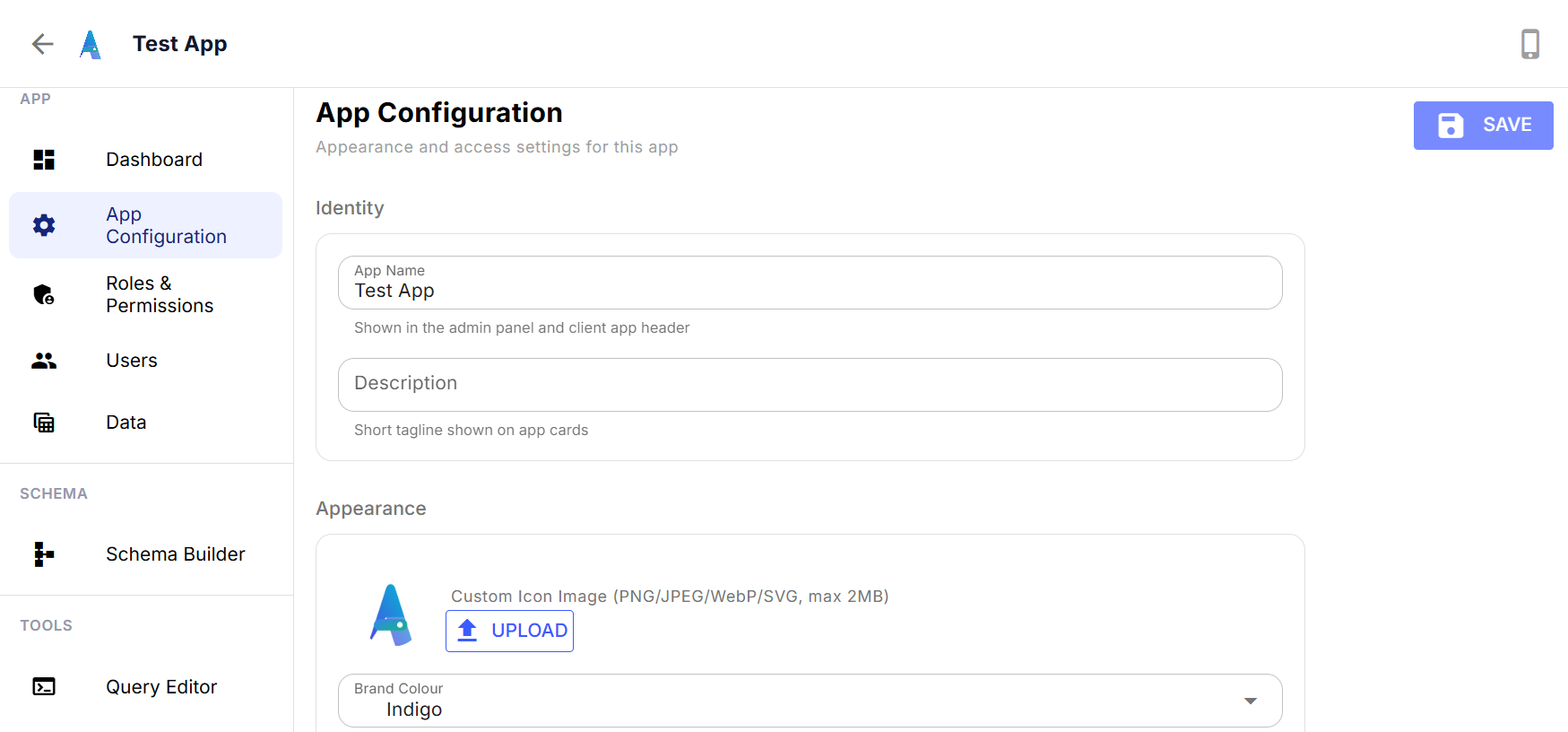
App Configuration is where that happens. The Identity section sets the name and short description shown in the admin panel and in the app itself — the same details your team sees every time they open it. Below that, Appearance lets you upload a custom icon (PNG, JPEG, WebP, or SVG, up to 2MB) and pick a brand color, so the app carries your logo and colors instead of a placeholder.
This isn't just cosmetic. If you're running more than one app — one for inventory, one for field reports — a shared default icon makes them hard to tell apart at a glance, especially on a phone home screen. A few minutes here means your team opens the right app without thinking twice about it.
It also matters if you're building for someone else's team, not just your own. An app that shows their name and their colors reads as something built for them, not a generic tool with their data dropped into it.
None of this requires a designer or a deploy. Change the icon, pick a color, hit save — the app reflects it immediately, everywhere it's used.